Introduction
The idgard Sync is a Windows app that brings your idgard workspace directly into your daily desktop workflow.
Note
With idgard Sync, your files are available in Windows Explorer just like a familiar cloud drive, while keeping the security standards of idgard.

The tool is as smooth as possible integrated in the Windows Explorer and the Windows Eco-System. idgard Sync is using the public available REST-APIs of idgard. Core features are integrated windows explorer file system operations, sync of file meta data between server and local device, file upload download, conflict resolution, change detection via file system watchers, offline access of files.
You mainly interact with idgard Sync in two places:
Tray Icon
The tray icon (next to your Windows clock) is the quickest way to open and control idgard Sync.
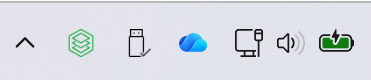
If you do not see the icon right away, click the up arrow in the taskbar to show hidden icons. You can pin it for faster access.
You can use these mouse actions:
- Single Left Click
Opens the SyncOverview. - Double Left Click
Opens your idgard drive in Windows Explorer (when you are signed in) or the LoginView. - Single Right Click
Opens the context menu with actions such as account options, settings, and sync controls.
Windows Explorer
idgard Sync appears in Windows Explorer as a Cloud Storage entry, similar to OneDrive or OneDrive Business.

When you open the idgard entry, you see all of your boxes (PrivacyBoxes, TemporaryBoxes, and Data Rooms).
You also find a Getting Started - PDF for quick onboarding.
Tip
You can jump to the box list by typing idgard into the Windows Explorer address bar.
If the icon does not appear in Windows Explorer, start the app once from the Windows Start menu and double-click the Tray Icon.