File Explorer Operations
Deleting files and folders
You can delete files and folders directly in Windows Explorer. Before carrying out the delete on the server, the app checks whether the idgard Recycle Bin is active for the box:
- idgard Recycle Bin active: The item is moved to the idgard Recycle Bin and can be restored from the idgard web application.
- idgard Recycle Bin inactive: The delete is blocked by default — Windows reports the operation as denied and the item remains in place.
To allow deletion in boxes without an active idgard Recycle Bin, enable Allow deletion of files and folders via Windows Explorer in boxes without an active idgard recycle bin in Application Settings. Items deleted with this option enabled are permanently deleted with no possibility of recovery.
When the delete proceeds, what happens on your device depends on whether the file was downloaded:
Downloaded files: The local copy is moved to the Windows Recycle Bin and can be restored from there. If you restore the file from the Windows Recycle Bin, it is uploaded to idgard as a new item on the next sync.
Cloud-only (not downloaded) files: Windows shows a confirmation dialog before removing the item. These files are local placeholders with no content stored on the device, so they are not moved to the Windows Recycle Bin.
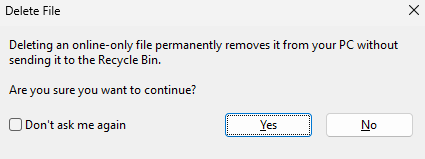
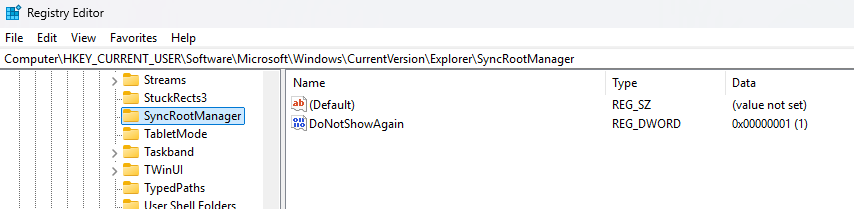
If you selected Don't ask me again and want to restore the dialog, set the DoNotShowAgain value to 0 or delete it in the Windows Registry under HKEY_CURRENT_USER\Software\Microsoft\Windows\CurrentVersion\Explorer\SyncRootManager.
Renaming files and folders
You can rename files and folders directly in Windows Explorer. The rename is applied to the corresponding item on the idgard server.
Moving files and folders
You can move files and folders within the same box in Windows Explorer. The move is applied to the corresponding item on the idgard server.
Note
Moving items across boxes or outside the idgard drive is not supported. In those cases, the action is blocked.