Application Settings
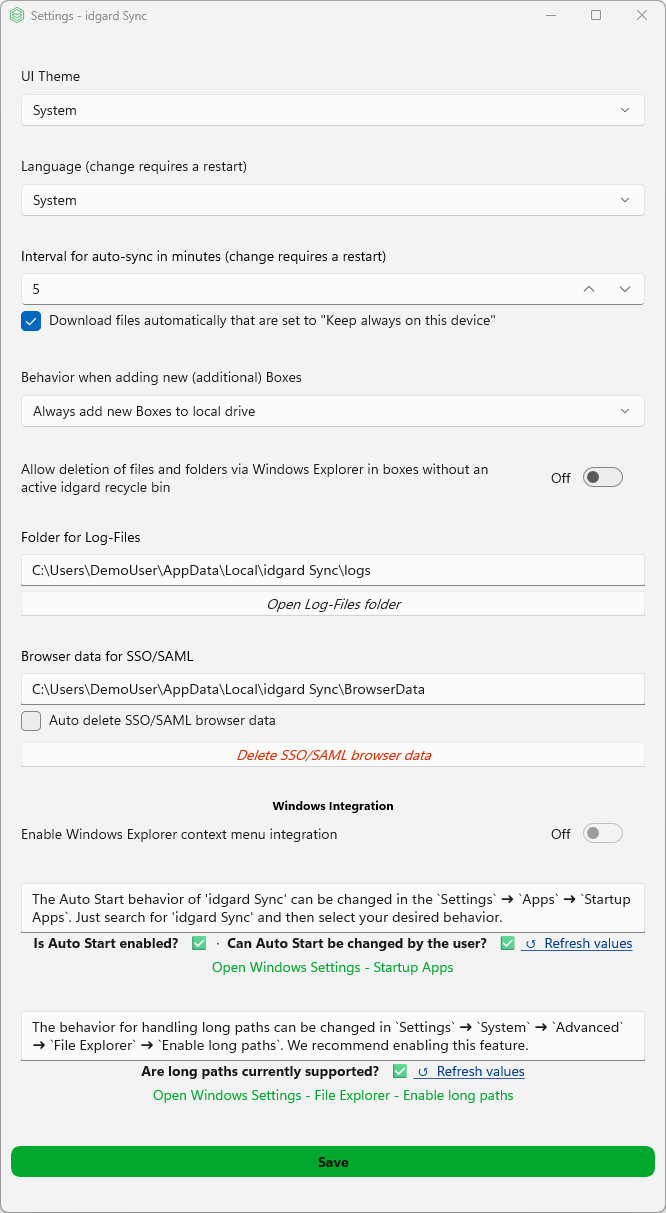
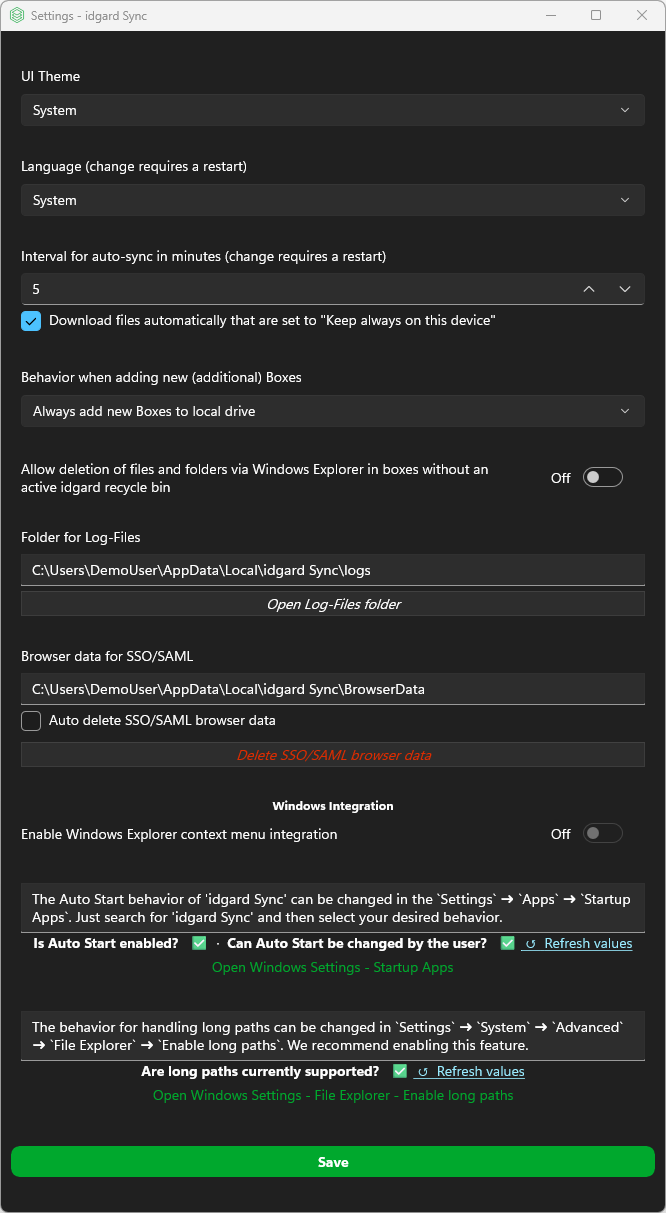
Use AppSettingsView - Application Configuration and Preferences to personalize how idgard Sync looks and behaves.
You can also access support-related paths such as log files and browser data.
Your settings are saved and applied again the next time you start the app.
Configuration Options
Theme Selection
- Options: Light, Dark, Follow System
- Applied immediately
Language Selection
- Options: English, German, Follow System
- Requires app restart
Auto-Sync Interval
- Sets how often the app automatically synchronizes with the server
- Default: 5 minutes
- Range: 1-720 minutes (12 hours maximum)
- Controls: +/- (1 minute), PgUp/PgDown (15 minutes)
- Requires app restart
Automatic Downloads
- Enable or disable automatic file downloads
- Requires app restart
This controls whether files marked as "Keep always" are downloaded automatically. In large shared boxes, this can generate higher network traffic and local storage usage.
Behavior When Adding New Boxes
- Choose how newly available boxes are handled after the initial box selection
- Option 1,
Always add new boxes to the local drive: Automatically adds each new box the user becomes a member of - Option 2,
Never add new boxes to the local drive - always select via the context menu: Does not add new boxes automatically; add them manually from the context menu when needed - Option 3,
Show box selection after each login - select boxes for local synchronization manually: Does not add new boxes automatically, but shows the box selection after each login so new boxes can be reviewed and added manually
Allow Deletion Without Recycle Bin
By default, deleting a file or folder in Windows Explorer is only permitted when the box has an active idgard Recycle Bin. This restriction exists to protect users from accidentally deleting data without any way to recover it. If the Recycle Bin is not active for a box, the delete operation is blocked.
Enable the Allow deletion of files and folders via Windows Explorer in boxes without an active idgard recycle bin toggle to remove this restriction. Items can then be deleted from any box, regardless of its Recycle Bin state.
Caution
It is not recommended to enable this setting. Files and folders deleted from boxes without an active idgard Recycle Bin are permanently deleted and cannot be recovered.
Log Files Management
- Shows the log folder path:
Folder for Log-Files - Open Folder opens the log directory in File Explorer
Browser Data Management
- Shows the browser cache/data folder path
- Auto-delete: Clears browser cache on app exit (used for items such as SSO session cookies); requires app restart
- Delete Browser Data: Clears browser cache immediately
Windows Integration
This section groups settings that control how idgard Sync integrates with the Windows operating system.
Context Menu
- Toggle:
Enable Windows Explorer context menu integration - When enabled, a idgard Sync entry appears in the Windows Explorer right-click context menu for items inside the sync root folder, providing quick actions such as opening the item in the web frontend.
Auto-Start Configuration
- Displays the current AutoStart state (✅ enabled / ❌ disabled) and whether the user is allowed to change it
- Use the ↺ refresh button to re-read the current values without reopening the window
- The link opens the Startup Apps page in Windows Settings (
Settings→Apps→Startup)
Long Path Configuration
- Displays the current long path support state (✅ enabled / ❌ disabled)
- Use the ↺ refresh button to re-read the current value without reopening the window
- The link opens the File Explorer page in Windows Settings (
Settings→System→Advanced→File Explorer) - Enable the
Enable long pathstoggle to allow file paths longer than 260 characters (MAX_PATH) - Requires the system-wide Group Policy
LongPathsEnabledto be set inHKLM\SYSTEM\CurrentControlSet\Control\FileSystem
When long paths are enabled, idgard Sync can sync and manage files with paths longer than 260 characters. Files are downloaded correctly in the background, and PowerShell or other long-path-aware applications can copy and access them without issues.
Note
Windows Explorer can navigate long-path folders and open files that are already fully downloaded. It cannot, however, open cloud-only files on demand, create new items, or rename existing items when the resulting path would exceed 260 characters — these are Windows Explorer limitations that apply regardless of this setting.
Note
This setting requires administrator rights and applies system-wide. It is recommended to enable it for best compatibility with deeply nested folder structures.
Proxy Configuration
- Web proxy functionality (if the defaults from Windows does not work)
- Proxy server address, can be an URL or an IP
- Proxy server port, any number, e.g. 8080
Note
Right-click the tray icon and choose App Settings to open this window.