First Sync
Requirements
To complete your first sync, you need:
- an installed version of idgard Sync
- your own idgard account
- at least read permission for the boxes or Data Rooms that you want to synchronize
If read permission is missing, a box cannot be added to the local drive. For more information, see Roles in idgard.
Sign in and select boxes
After clicking the app icon in the taskbar, the sign-in window opens.
- Enter the username and password of your idgard account. Alternatively, you can switch to the
Single Sign-ontab and sign in using your domain URL. - Sign in.
- Select the boxes that you want in the box selection window.
- Start synchronization.
Windows Explorer then shows the idgard drive with the selected boxes as subfolders.
What is downloaded during the first sync
During the first sync, only metadata for the selected content is transferred to the device. The files themselves initially remain in the cloud.
This metadata includes, for example:
- file name
- file size
- unique file ID
- folder ID
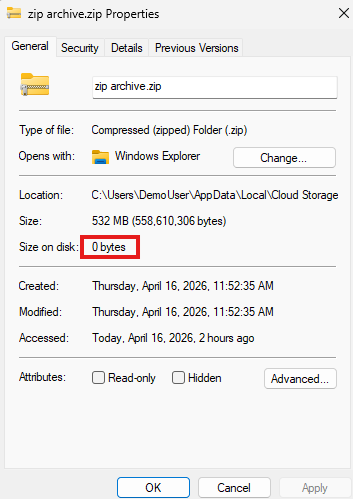
This is why content can already be visible in File Explorer even though it does not yet consume local disk space.
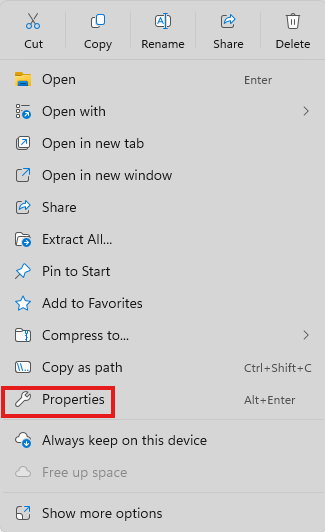
When you open Properties from the context menu, pure placeholder files will typically still show 0 bytes as disk space used.
Download files on demand
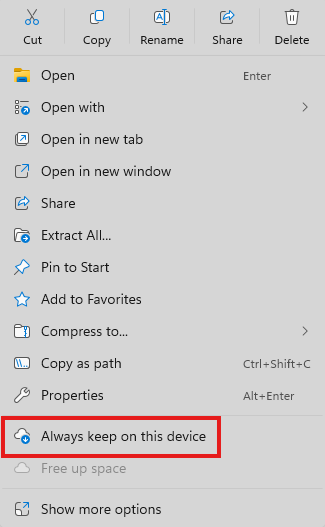
A file is downloaded locally when you open it or choose Always keep on this device from the Windows context menu.
Typical results:
- Double-clicking downloads the file and opens it in the associated Windows application.
- The context menu can be used to make the file available offline on purpose.
- The file only uses local storage after it has been downloaded.
Download folders or complete boxes
The same principle also applies to folders and entire boxes.
- If you set a folder to
Always keep on this device, its contents are downloaded gradually. For large folders, only a portion of the files starts downloading immediately — the rest are queued during the next synchronization, provided the Automatic Downloads setting is enabled. - If you do the same for a box, the action applies to all contained folders and files.
Depending on the amount of data, this process may take some time. Make sure there is enough free disk space on the device before you start.
Status icons in File Explorer
The Status column in File Explorer shows content with different status icons. There are five basic states:
Normal sync statuses are:
 only available in the idgard box
 available on the device
 always available offline on the device
During synchronization, the following status is displayed:
 currently synchronizing or updating
Additionally, there is also the error status:
 synchronization error
These status indicators help you understand whether a file is still only a placeholder, has already been downloaded, or is currently being processed.