Activities View
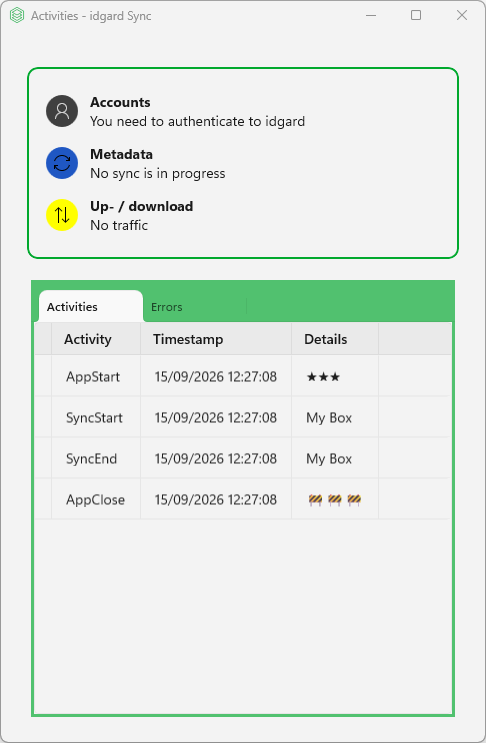
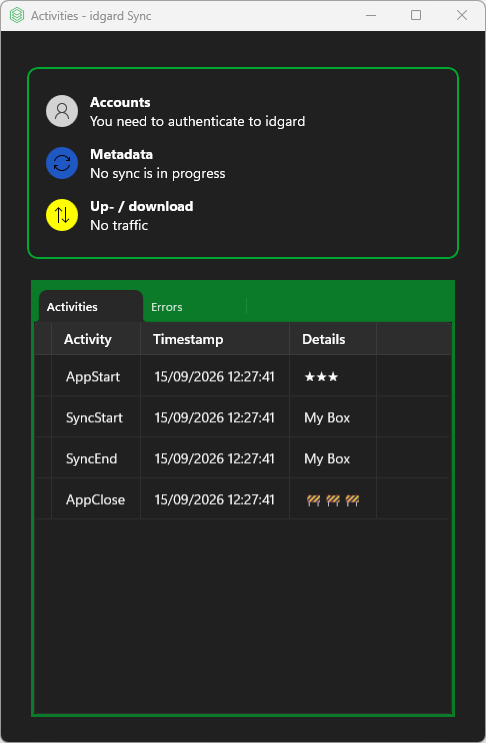
The Activities Window - Activity Monitoring and Error Management gives you detailed insight into what the app is doing right now and what happened recently.
Use it to monitor sync behavior and quickly identify issues.
Health Status Panel
- Color-coded border matching the current app state.
- Three status indicators:
- Accounts Status: Shows connection status for your accounts.
- Metadata Sync Status: Shows which box is currently syncing.
- Traffic Status: Shows file counts and transfer progress.
The status area shows the current sync state at a glance:
| State | Color | Symbol | Message |
|---|---|---|---|
| None | None | Initial state | |
| NotAuthenticated | Error color (gray) | | Login required |
| Synchronizing | Busy color (blue) | | Currently syncing meta-data |
| UploadOrDownloadInProgress | Busy color (yellow) | | Traffic is on going |
| Success | Success color (green) | | Sync completed |
| Error | Error color (red) | | Error description |
Tabbed Interface
Tab 1: Activities
- Read-only list of recent app activities in chronological order.
Tab 2: Errors
- Read-only list of errors.
- Error entries are clickable so you can open the related folder and resolve the issue.
Tab 3: Downloads - Debug Only, Experimental
- Shows active and recent download operations
Tab 4: Uploads - Debug Only, Experimental
- Shows active and recent upload operations
Note
Open SyncOverview Window with a single left-click on the tray icon, then use the activity button to open Activities Window.