Recovering From Error Situations
This page describes how to recover from errors that may occur during installation, usage, or removal of the application.
Missing prerequisites
idgard Sync requires the following components to be installed on your device. If one of them is missing, the application will not start.
- .NET Desktop Runtime — install the version that matches the application version you are using
- Windows App SDK — install the version that matches the application version you are using
If you are unsure which version is required, check the release notes of idgard Sync or contact your IT administrator.
Missing .NET Desktop Runtime
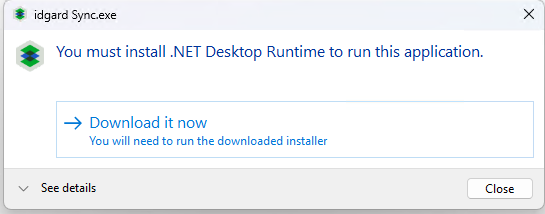
When the .NET Desktop Runtime is missing, idgard Sync will display the following dialog. Confirm the dialog to open the download page, then install the component and restart the application.
Missing Windows App SDK
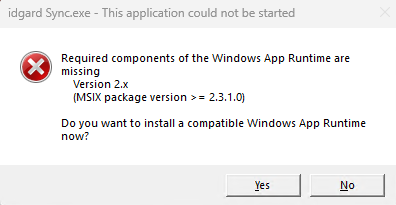
When the Windows App SDK is missing, idgard Sync will display the following dialog. Confirm the dialog to open the download page, then install the component and restart the application.
Note
If the download page does not offer the exact version required, check the error message in the dialog for the version number, then search for that specific version on the Windows App SDK download page and download it manually. The download page might only show the latest version — then you need to browse the archive to find the correct version required. The minor version must match exactly — for example, version 2.4 does not satisfy a requirement for 2.3. Install the required version alongside any existing version, as multiple versions can run in parallel on the same device.
Synchronization errors
Warning
Some of the recovery actions described below can remove local content that has not yet been synchronized to the idgard server. Before you continue, copy any important local data to a location outside the idgard drive.
Check whether a local file or folder is causing the error
If the error is caused by a local file or folder, you can find the relevant information in the error details in the Activities view.
In many cases, the issue can be resolved by moving the affected file or folder out of the idgard drive to another folder on your device. If the cause was only temporary, you can try again later to apply you desired change.
To check whether the issue is related to missing permissions, try to perform the same action, for example uploading the file, in the web application.
Start a full sync to recover from missed changes
If the local state no longer matches the server, starting a full sync can resolve the inconsistency without removing any boxes or accounts.
The partial sync is optimized for performance and only processes recent changes, which means it can miss updates in certain situations. A full sync re-evaluates every file and folder across all locally selected boxes and can detect changes that were missed by the regular automatic sync, for example:
- A permission change on the server affected the folder structure, but the partial sync did not detect the resulting tree change.
- A file was open in another application during an automatic sync cycle, which prevented it from being updated. The partial sync will not re-attempt this in a subsequent run.
To start a full sync, right-click the tray icon and select Sync -> Start full sync. A confirmation dialog will appear before the sync begins.
Before confirming, resolve any existing sync conflicts indicated by a red sync state, and save and close any open files located under the idgard drive. The process may take considerable time depending on the number of files and folders.
Temporarily remove the affected box from sync
If the error is related to a specific box, you can temporarily remove that box from local synchronization and add it again later.
You can do this from the tray context menu: Accounts -> idgard Account -> your configured account -> Select sync boxes
Remove and add the account again
If the problem persists, you can remove the complete idgard account and configure it again afterward.
You can do this from the tray context menu: Accounts -> idgard Account -> Remove user account
Reinstall the application
If you have the required permissions on your device, you can also try uninstalling and reinstalling idgard Sync.
What to expect afterward
Depending on the amount of data involved, adding boxes again may take some time, especially if they contain many items or large files that need to be downloaded again.
When you add a box again, local configuration for that box may be lost, for example settings such as keeping folders or documents always available offline.